
Overview
The viewer displays images and data, and provides tools for interacting with these images and data in various view modes.

| 1 | The main view, where you can see the image currently selected. |
| 2 | The Data Panel tool. To access search, search results or the worklist. |
| 3 | The top toolbar. To access commonly used tools in the viewer. |
| 4 |
The Documentation menu. To access this user guide, the hotkey reference, and information about the software. On smaller screens, the documentation is accessible from the Settings menu |
| 5 | The Settings menu. To configure the view. See Configuring the display settings. On smaller screens, you can use this menu to configure the toolbar and to access documentation. |
| 6 | The view menu. |
| 7 | 2D layouts (1x1, 2x1, 1x2, and 2x2). See Selecting a layout. |
| 8 | The Collaboration tool. See Collaborating in real-time. |
View modes
There are three different modes to view data.
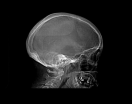
|
The 2D view mode displays data in a two-dimensional format. It is the default view mode, and is always available, regardless of the type of image loaded into the viewer. |
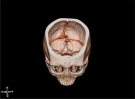
|
The 3D view mode renders volumes in a in a three-dimensional format. A unique lens lets you penetrate through the volume and see the inside. There are also tools to remove obscuring material from the volume, allowing you to focus clearly on a specific anatomy or pathology. |
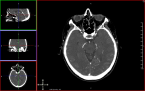
|
The MIP/MPR view mode allows you to see and interact with cross sections of 2D images. You can assign curved MPR to the main view, manipulate the planes in the orthogonal strip views on the side, and change the thickness of the slabs. |
Some viewer features are only available in specific view modes.
Images are initially displayed in the 2D view mode, but you can switch view modes at any time.
To switch view modes
Do one of the following:
- Click the desired mode in the top toolbar. (Only available modes are shown in the toolbar.)
- Open the view menu and select a view mode. (Unavailable view modes will be greyed out in the menu.)
To select a tool from the toolbar
- Click the tool. The tool will be highlighted when it is selected.